Your personalized
AI assistant for
Save time and strengthen student outcomes
with AI tailored to you!
Works with your tools
Google Classroom
Google Drive
Google Docs
Google Forms
Google Sheets
Microsoft Word
PDF files
Canvas
Illuminate
Clever











Your personalized
AI assistant for
Save time and strengthen student outcomes with AI tailored to you!
Works with your tools
Your personalized AI assistant for
Save time and strengthen student outcomes with AI tailored to you!
Works with your tools
Our product
What does EnlightenAI do?
Our product
What does EnlightenAI do?
Our product
What does EnlightenAI do?
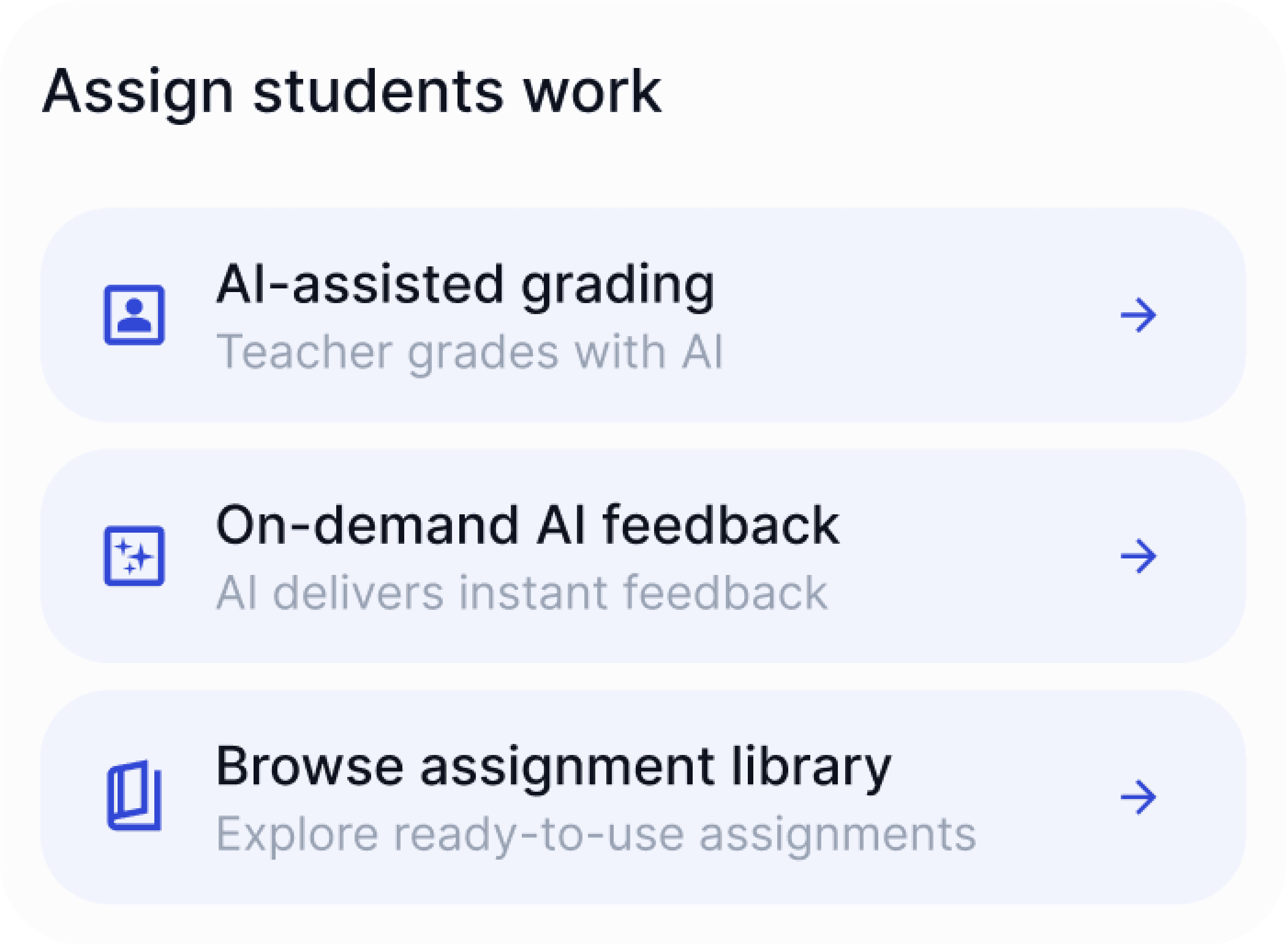
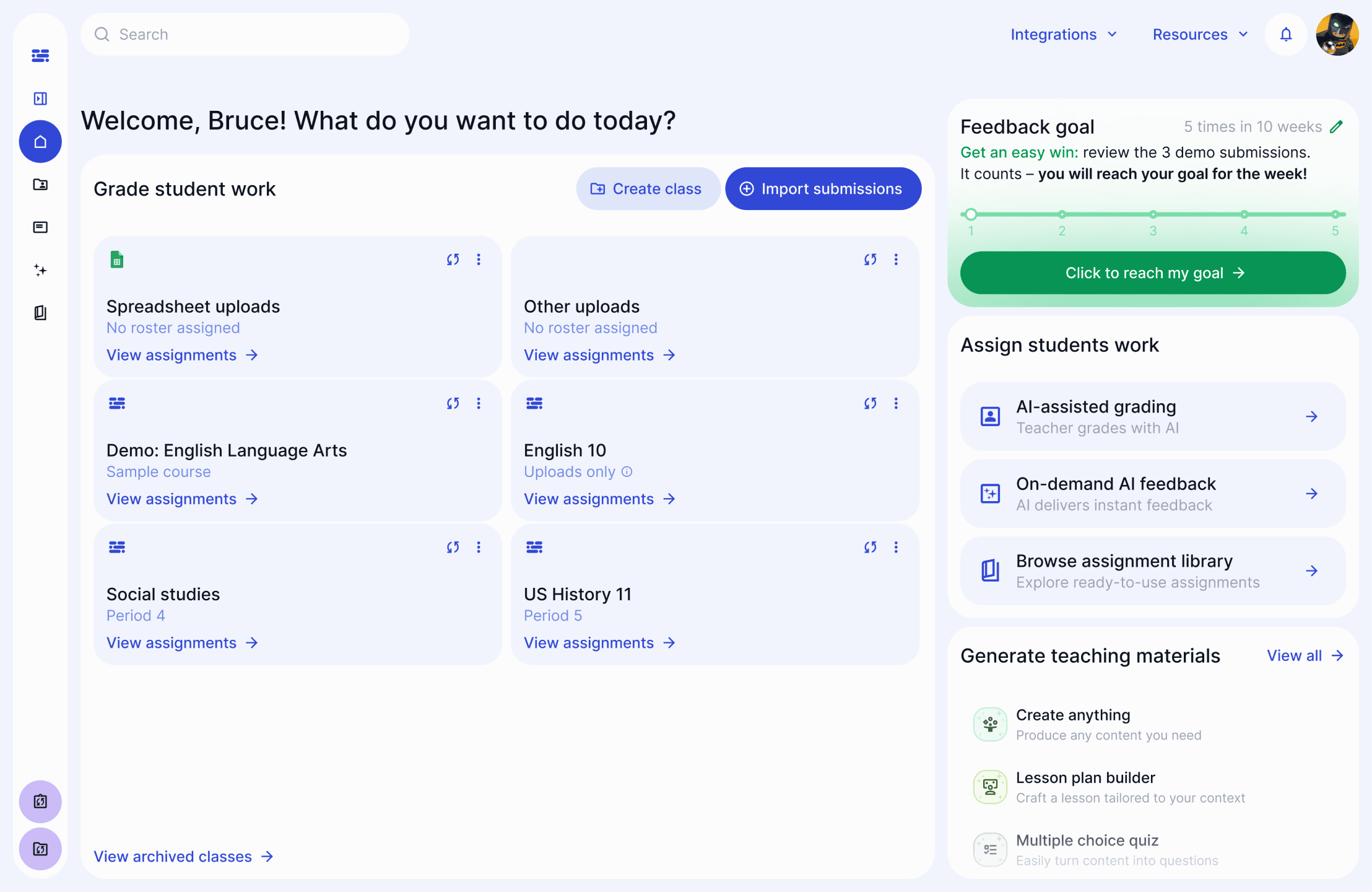
Adaptive AI grading and feedback
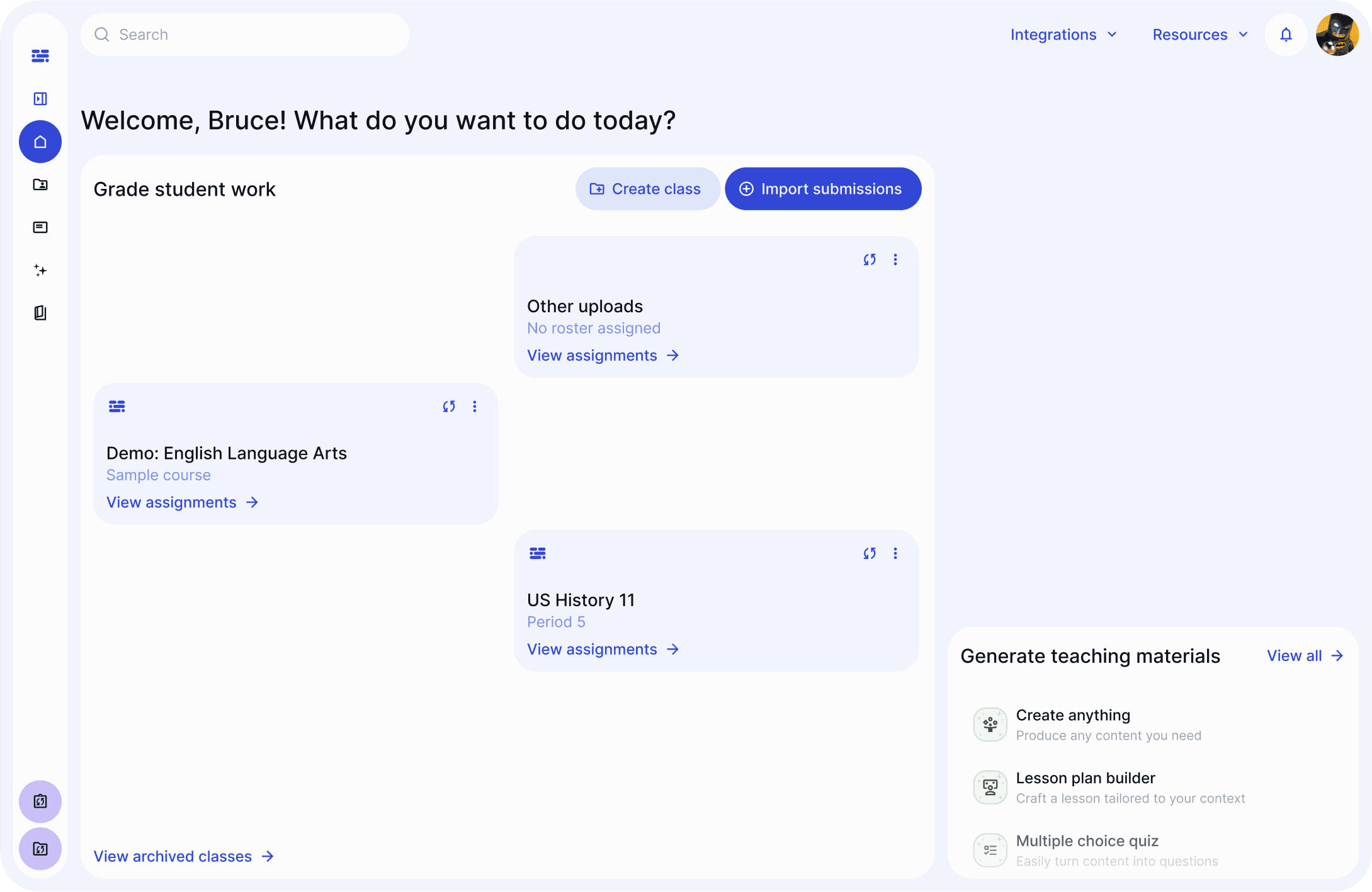
Import submissions and describe the assignment.
Train the AI by grading five submissions together.
Bulk grade the rest, then review – just like a Teacher’s Assistant!
Adaptive AI grading and feedback
Import submissions and describe the assignment.
Train the AI by grading five submissions together.
Bulk grade the rest, then review – just like a Teacher’s Assistant!
Adaptive AI grading and feedback
Import submissions and describe the assignment.
Train the AI by grading five submissions together.
Bulk grade the rest, then review – just like a Teacher’s Assistant!
On-demand AI feedback for students
Set your AI Teacher’s Assistant up with the task and rubric.
Test and tailor the AI feedback, then share a link with students.
Students get on-demand AI feedback and revise their work.
On-demand AI feedback for students
Set your AI Teacher’s Assistant up with the task and rubric.
Test and tailor the AI feedback, then share a link with students.
Students get on-demand AI feedback and revise their work.
On-demand AI feedback for students
Set your AI Teacher’s Assistant up with the task and rubric.
Test and tailor the AI feedback, then share a link with students.
Students get on-demand AI feedback and revise their work.
Data-driven teaching materials
View student level insights.
Leverage class-wide trends reports.
AI generate custom resources to target gaps.
Data-driven teaching materials
View student level insights.
Leverage class-wide trends reports.
AI generate custom resources to target gaps.
Data-driven teaching materials
View student level insights.
Leverage class-wide trends reports.
AI generate custom resources to target gaps.
Use seamlessly
Integrate effortlessly with the tools you know and trust
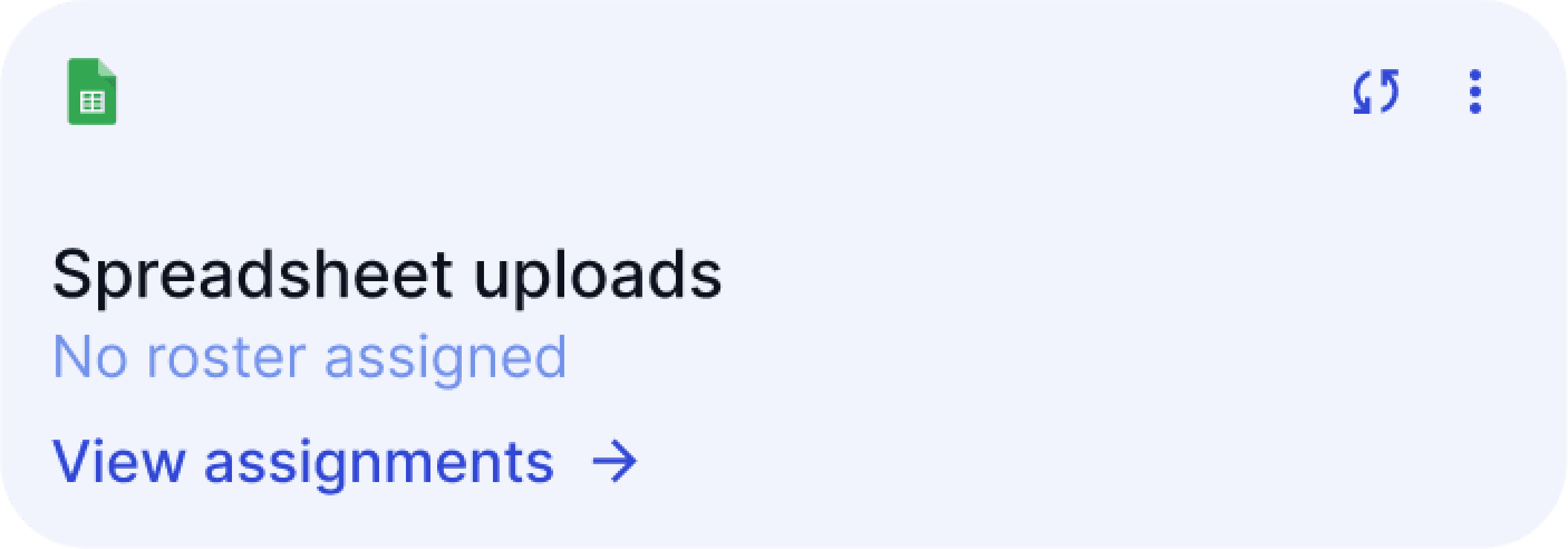
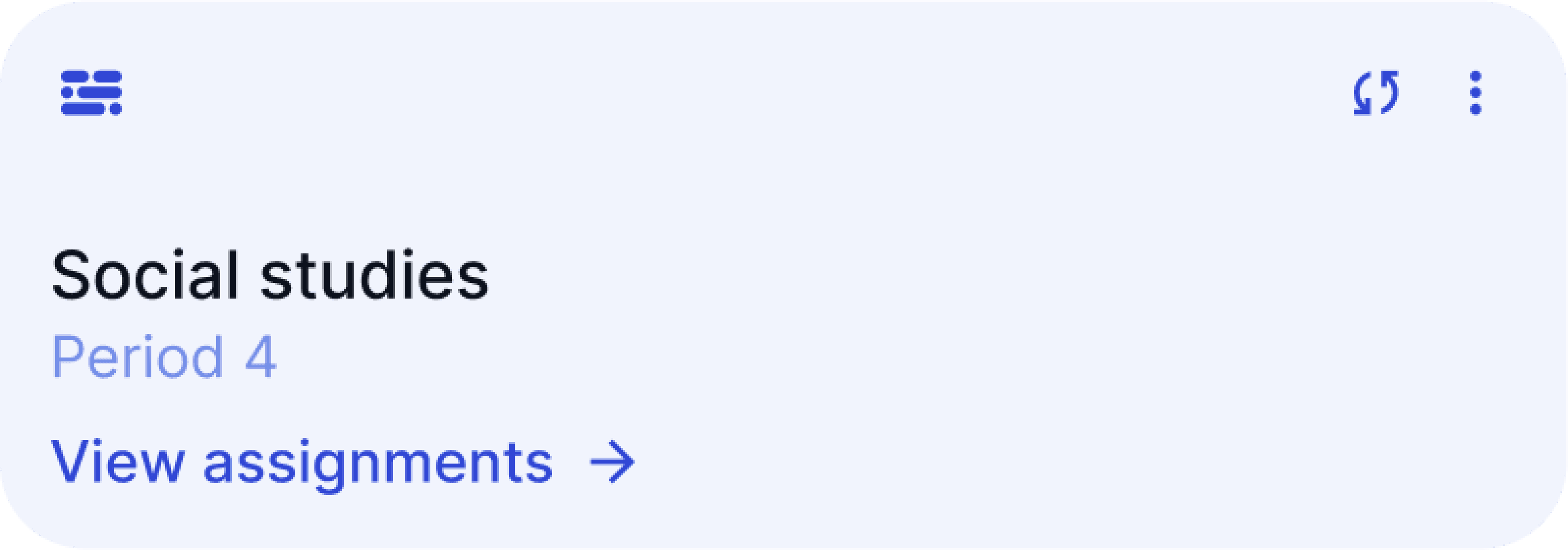
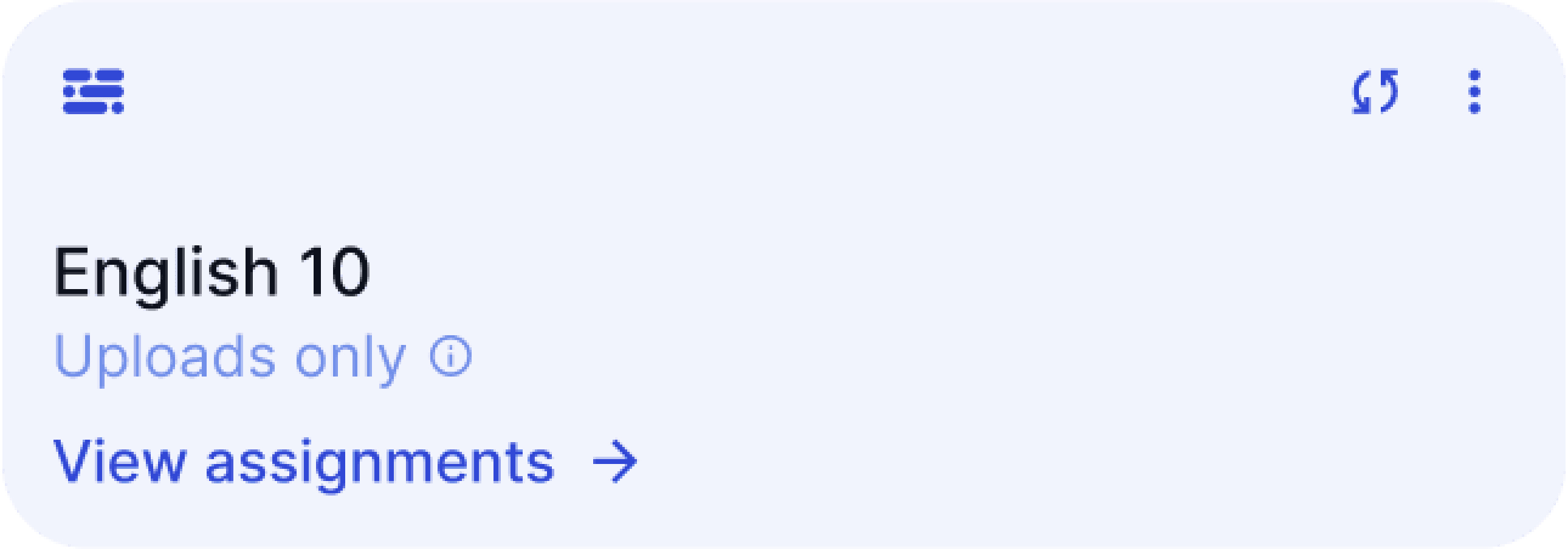
EnlightenAI integrates seamlessly into your workflow, offering direct compatibility with Google Classroom, Google Docs, Google Sheets, PDFs, Canvas, Illuminate, and more.
It works across grade levels, subject areas, geographies, languages, and curricula.
Use seamlessly
Integrate effortlessly
with the tools you
know and trust
EnlightenAI integrates seamlessly into your workflow, offering direct compatibility with Google Classroom, Google Docs, Google Sheets,
PDFs, Canvas, Illuminate, and more.
It works across grade levels, subject areas,
geographies, languages, and curricula.
Use seamlessly
Integrate effortlessly with the tools you know and trust
EnlightenAI integrates seamlessly into your workflow, offering direct compatibility with
Google Classroom, Google Docs, Google Sheets, PDFs, Canvas, Illuminate, and more.
It works across grade levels, subject areas, geographies, languages, and curricula.
A simple process
How does it work?
A simple process
How does it work?
A simple process
How does it work?
1
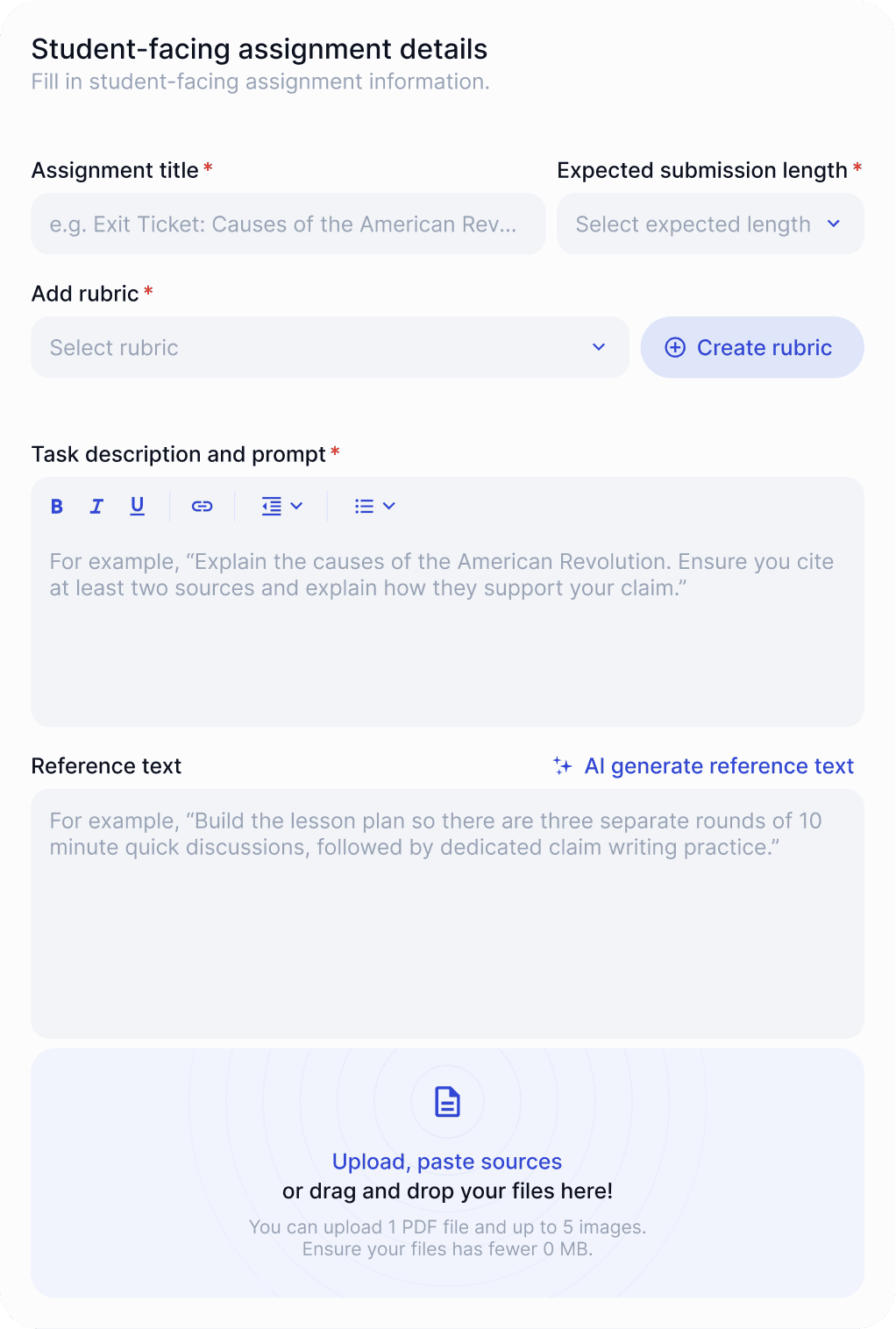
Set up your assignment
with a rubric and instructions
Import your student work, or create a new assignment in EnlightenAI.
1
Set up your assignment
with a rubric and instructions
Import your student work, or create
a new assignment in EnlightenAI.
1
Set up your assignment with a rubric and instructions
Import your student work, or create
a new assignment in EnlightenAI.
2
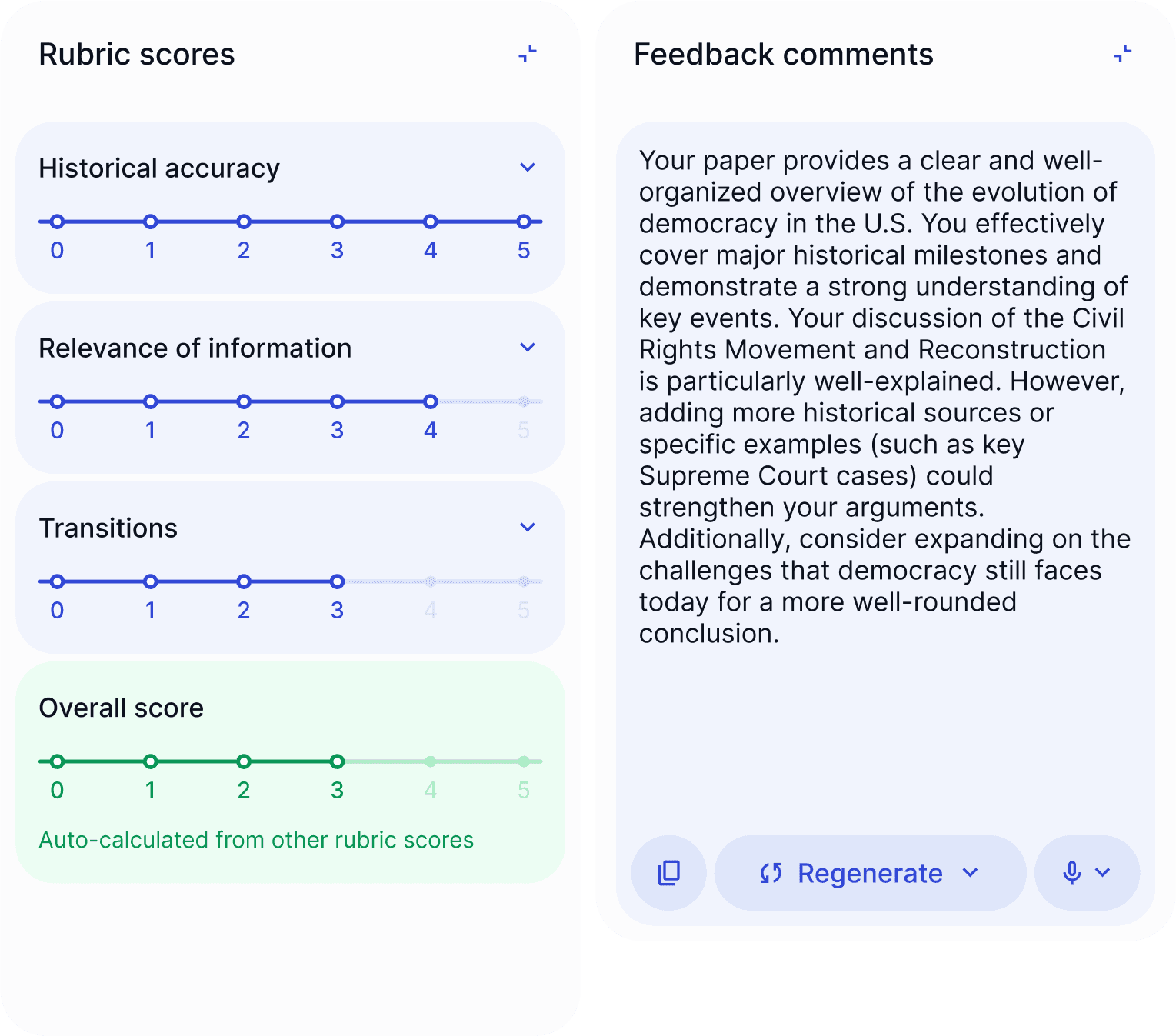
Train the AI to grade
with five examples
Grade with AI assistance, or set the AI up to deliver instant feedback.
2
Train the AI to grade with
five examples
Grade with AI assistance, or set
the AI up to deliver instant feedback
2
Train the AI to grade
with five examples
Grade with AI assistance, or set the AI up to deliver instant feedback
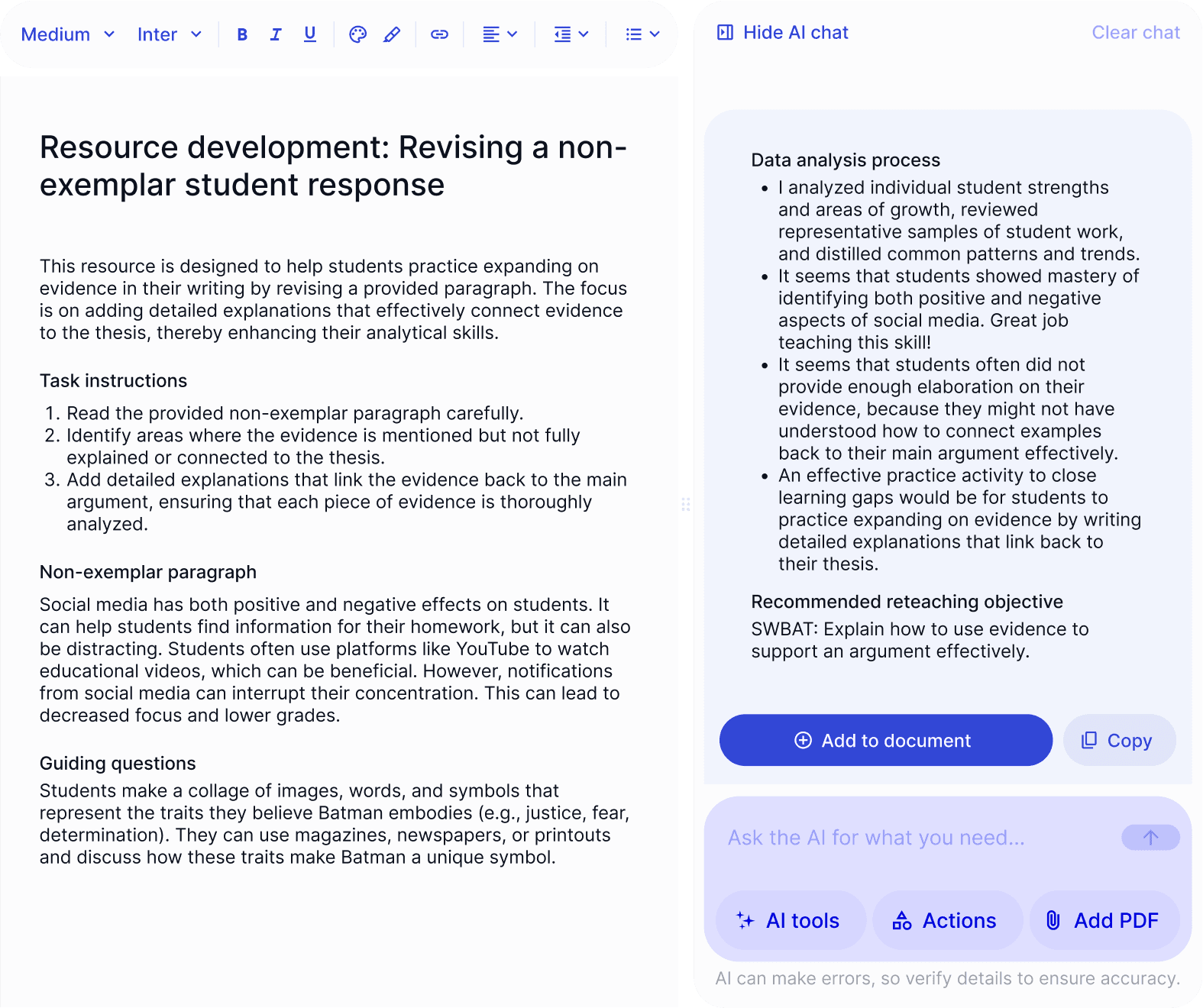
3
Generate grades, feedback,
and materials in minutes
Edit scores and feedback, then generate custom resources to target student needs.
3
Generate grades, feedback,
and materials in minutes
Edit scores and feedback, then generate custom resources to target student needs
3
Generate grades, feedback, and materials in minutes
Edit scores and feedback, then generate custom resources to target student needs
Key features
Plan, teach, and grade with EnlightenAI


























Key features
Plan, teach, and grade with EnlightenAl
Description text
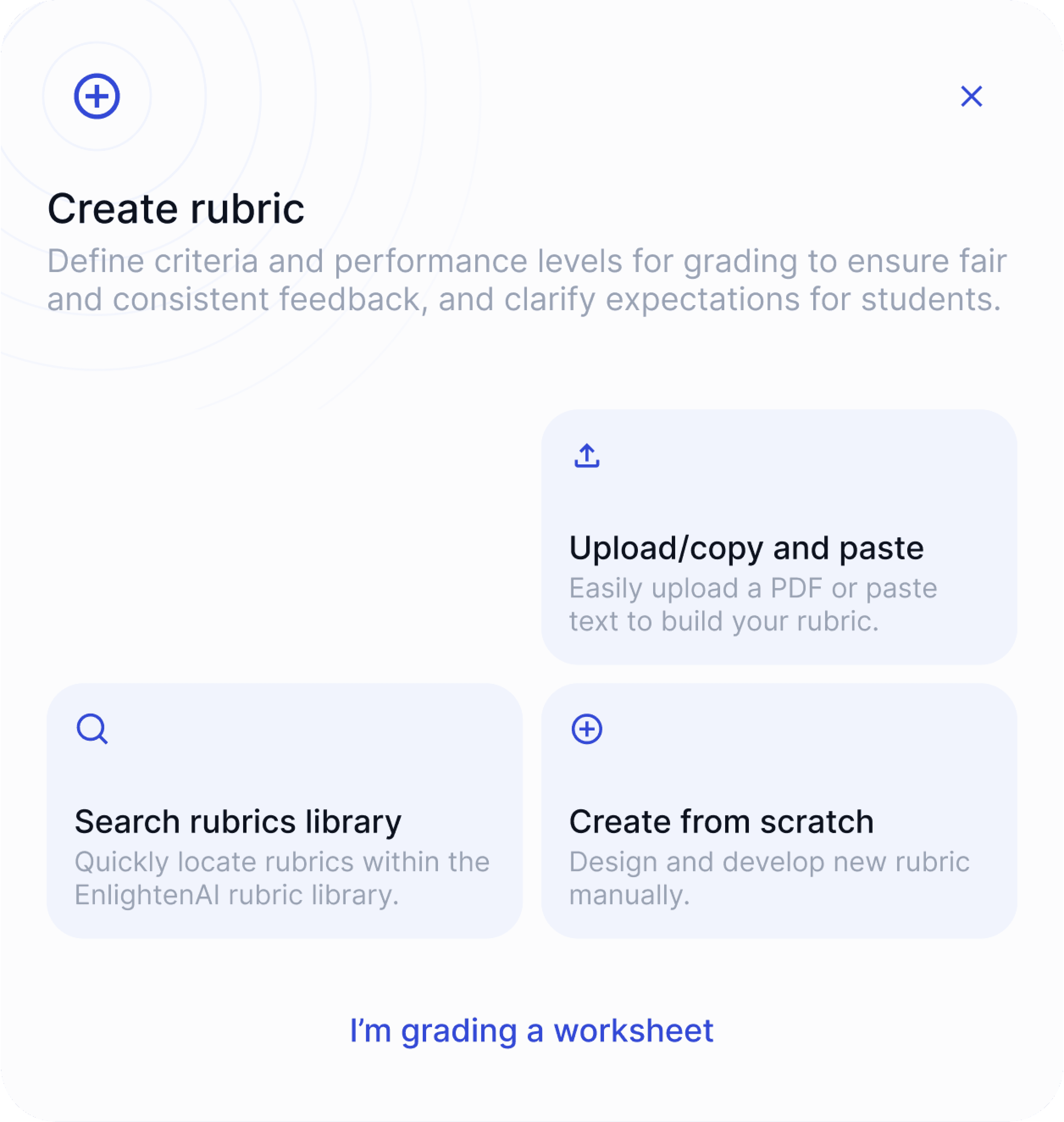
Rubric management
Find your preferred rubric in our rubrics library, or import, generate, and manually create the rubric you need in a couple clicks.
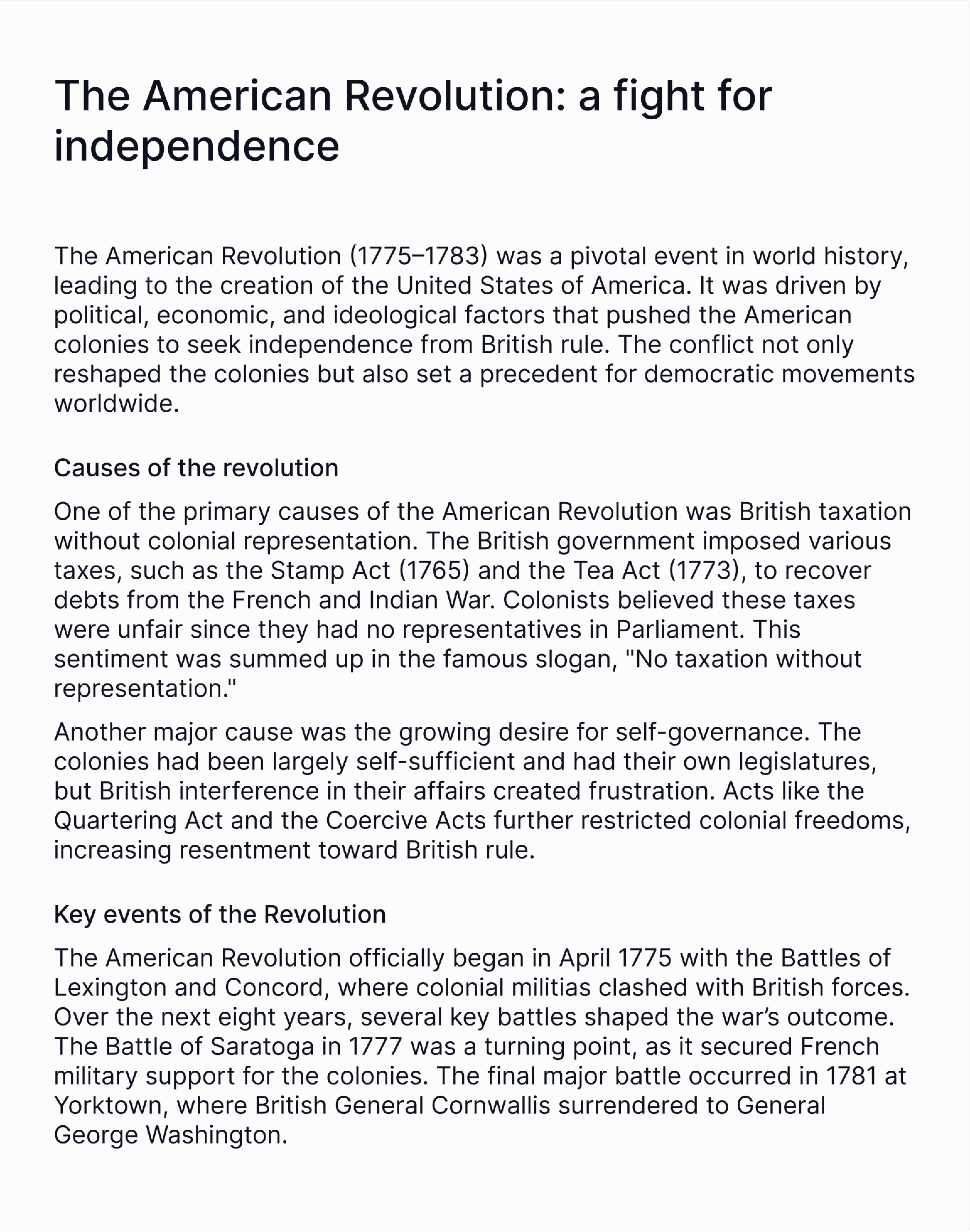
Google Classroom integration
Sync Google Classroom to import your rosters, assignments, and student Google Doc submissions. You can post feedback directly to Google.
Adaptive Al grading
As you edit AI suggested scores and feedback, your AI assistant learns and improves, getting more accurate and aligned with each click.
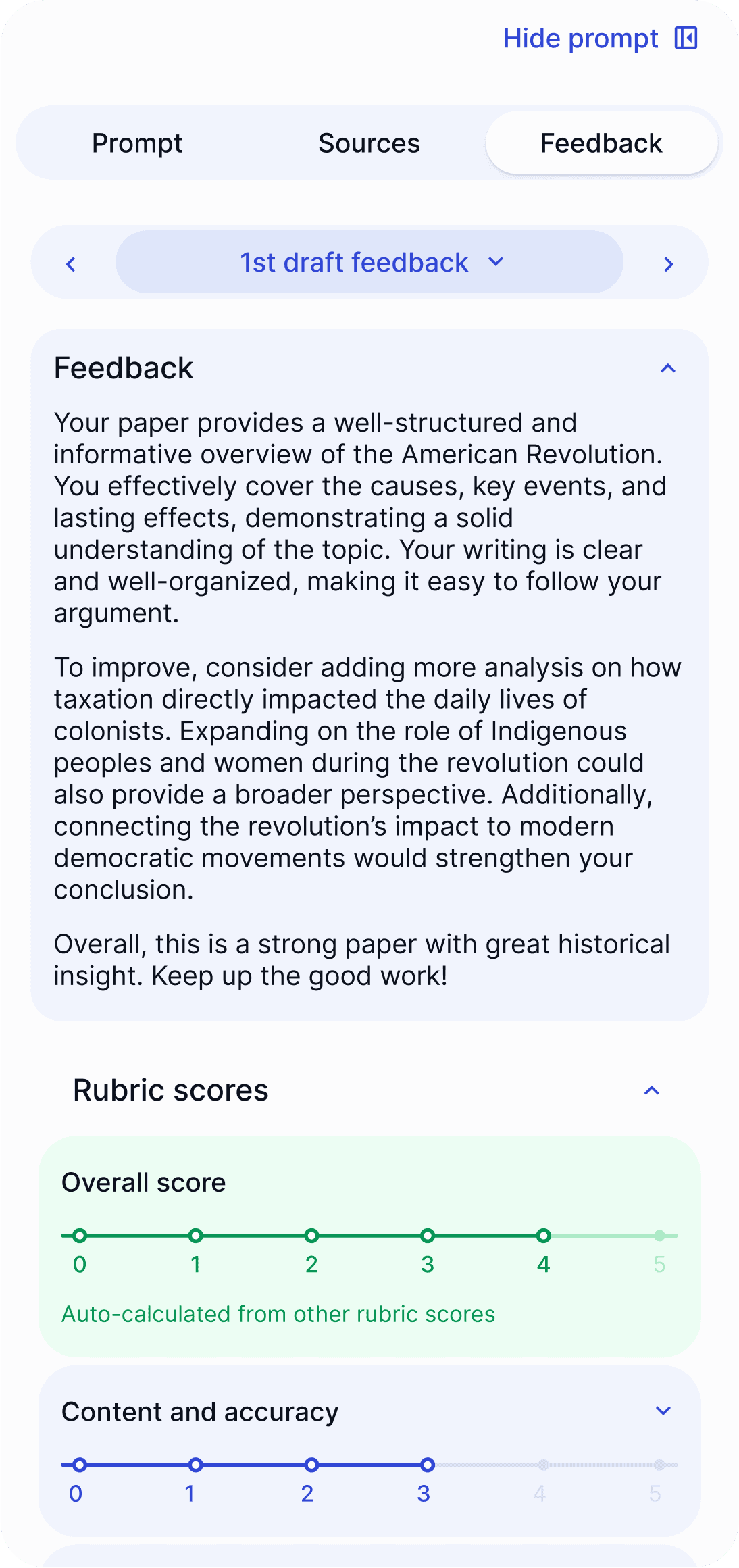
Immediate Al feedback
Set up your AI assistant to deliver feedback immediately when student submit, enabling them to revise their work on the spot.
Feedback reports
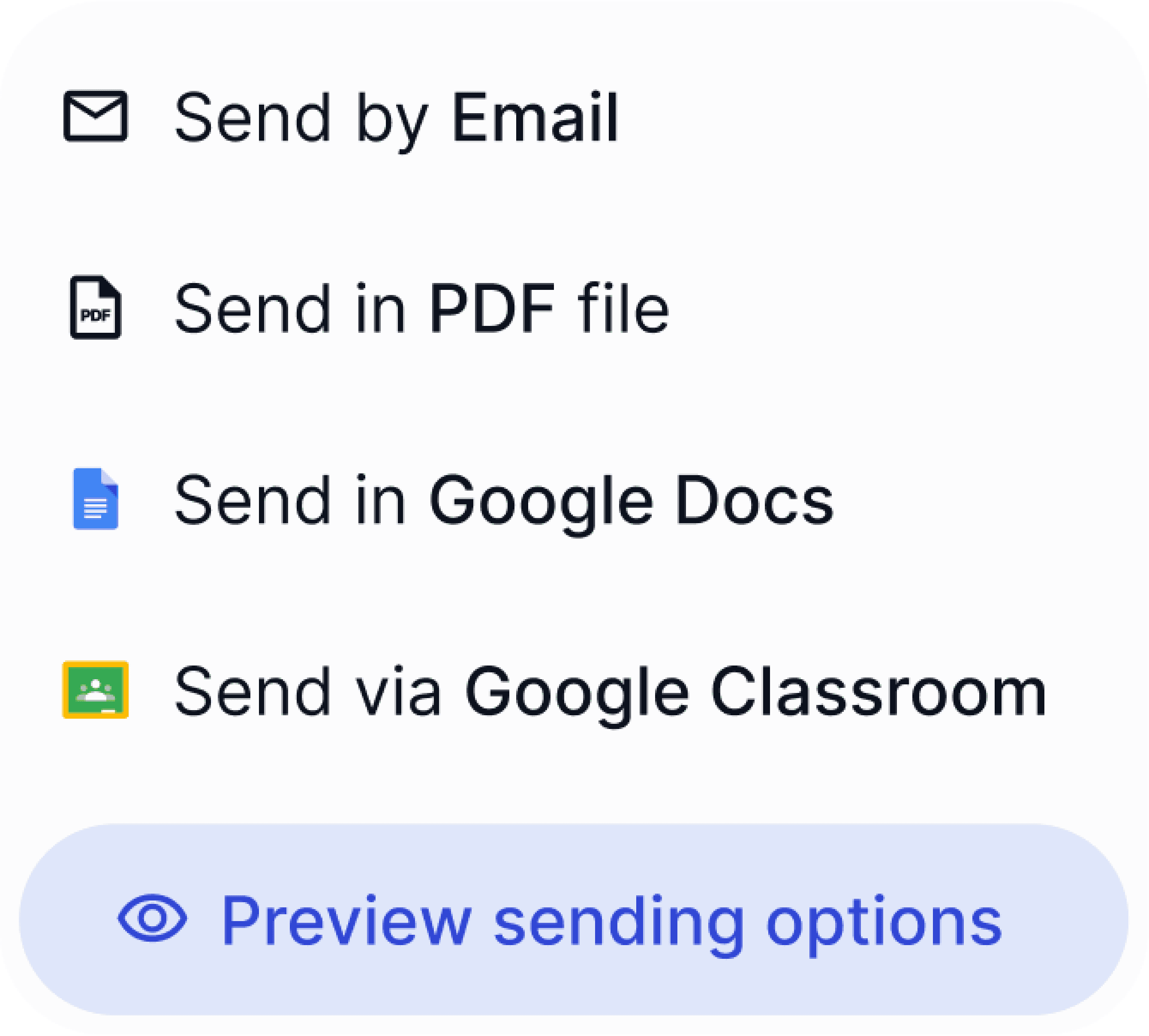
Send feedback to students using your preferred method, ranging from PDF handouts to posting on student work.
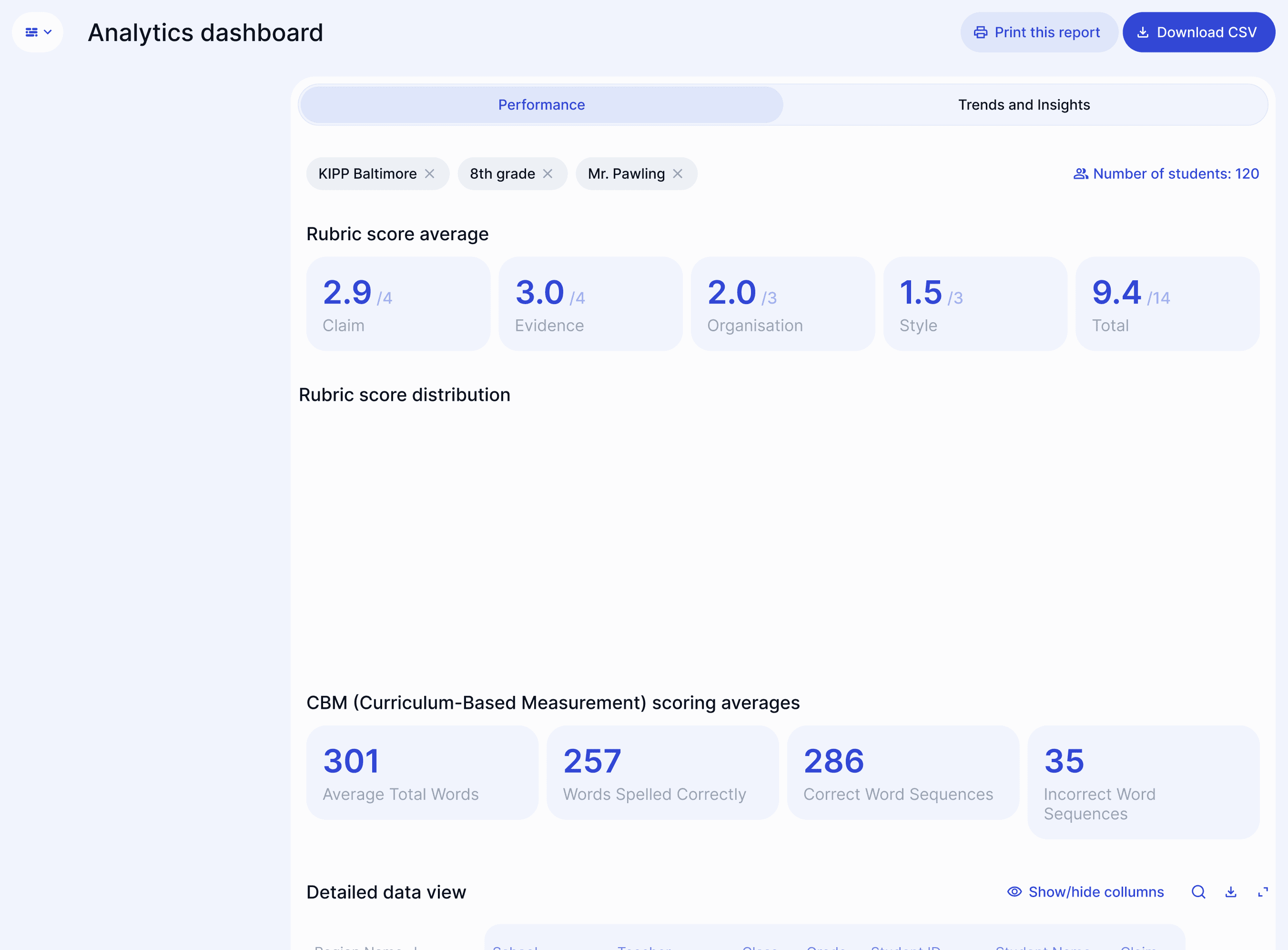
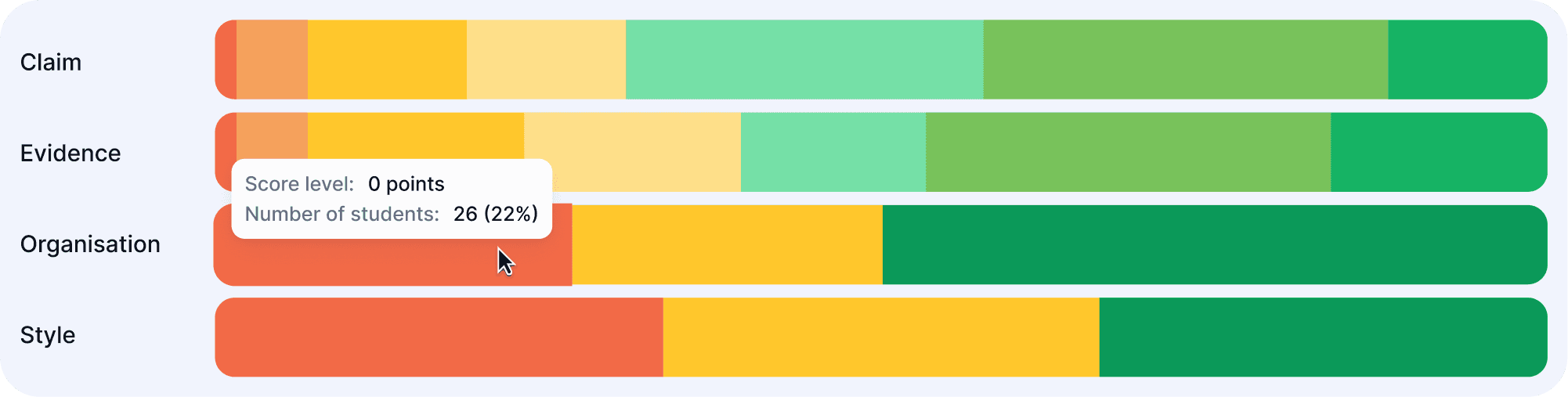
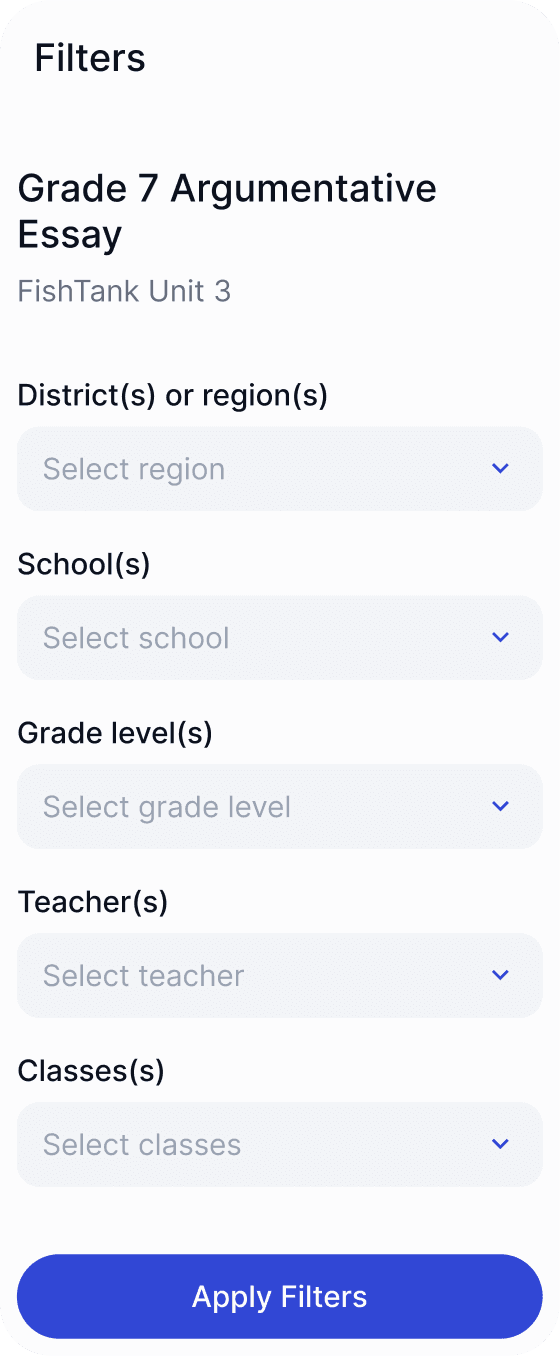
Student and class insights
View detailed student-level and class-level insights and trends, enabling you to target learning needs effectively.
Data-driven teaching materials
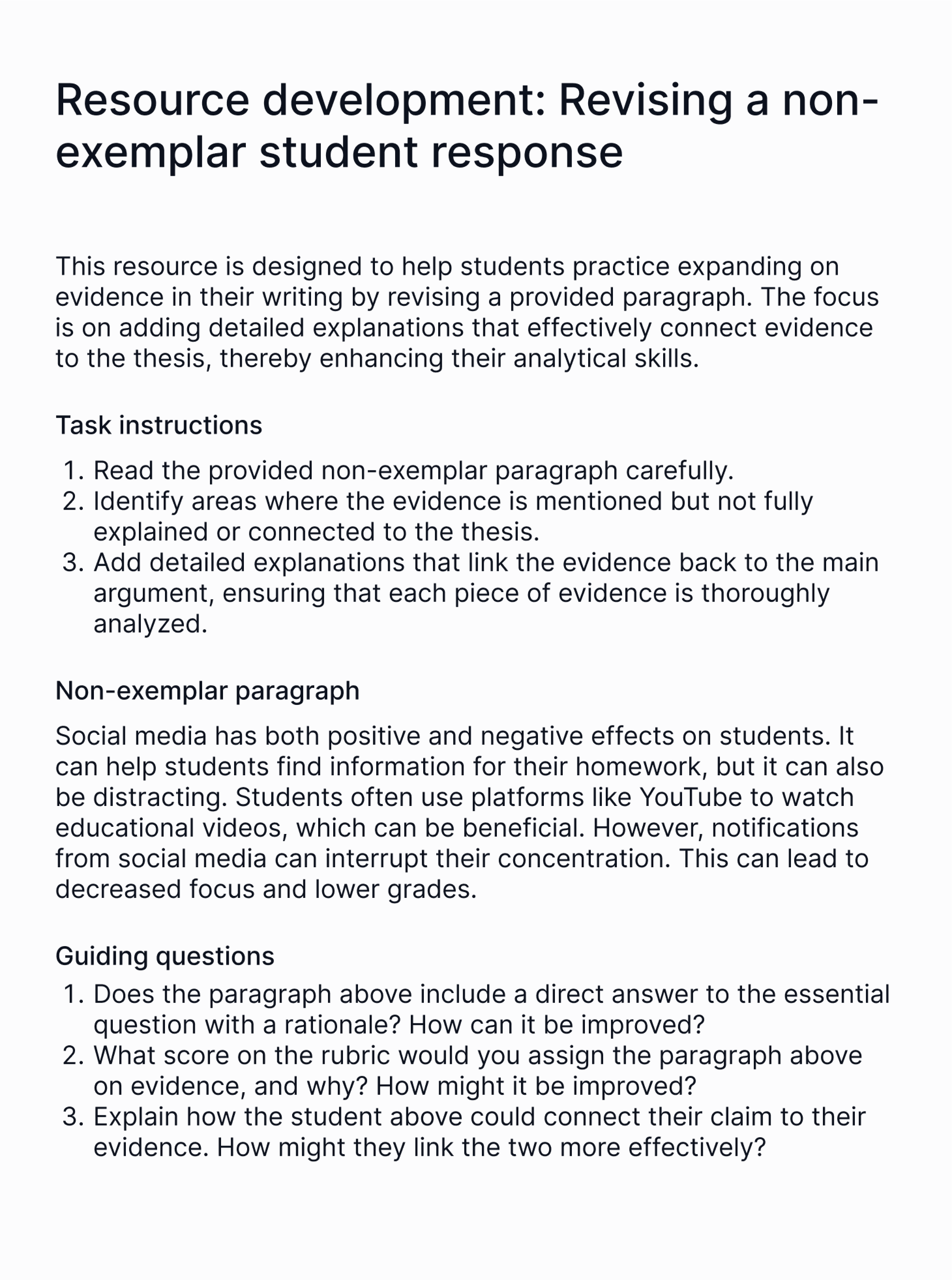
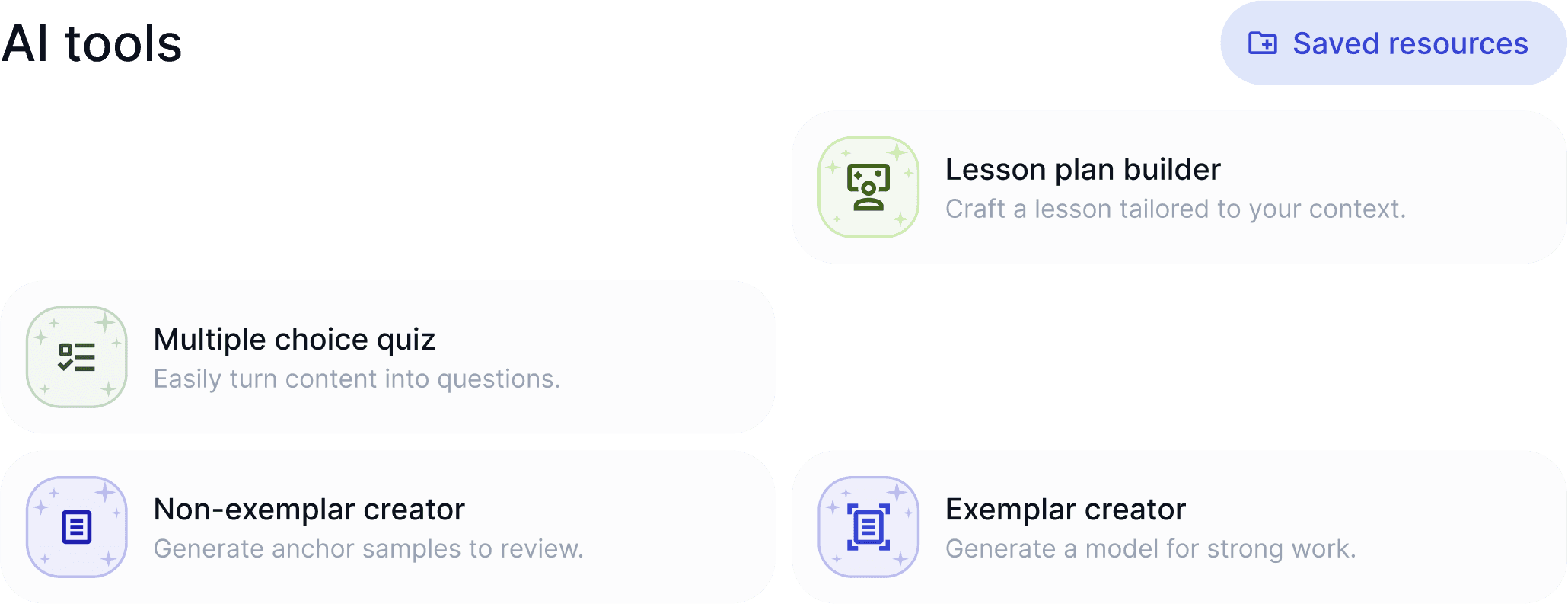
AI generate first-draft resources designed specifically to target your students’ learning needs.
Al teaching tools
Generate teaching materials in our purpose-built AI editor for education, which lets you build and refine AI outputs with AI superpowers.
Al-assisted differentiation
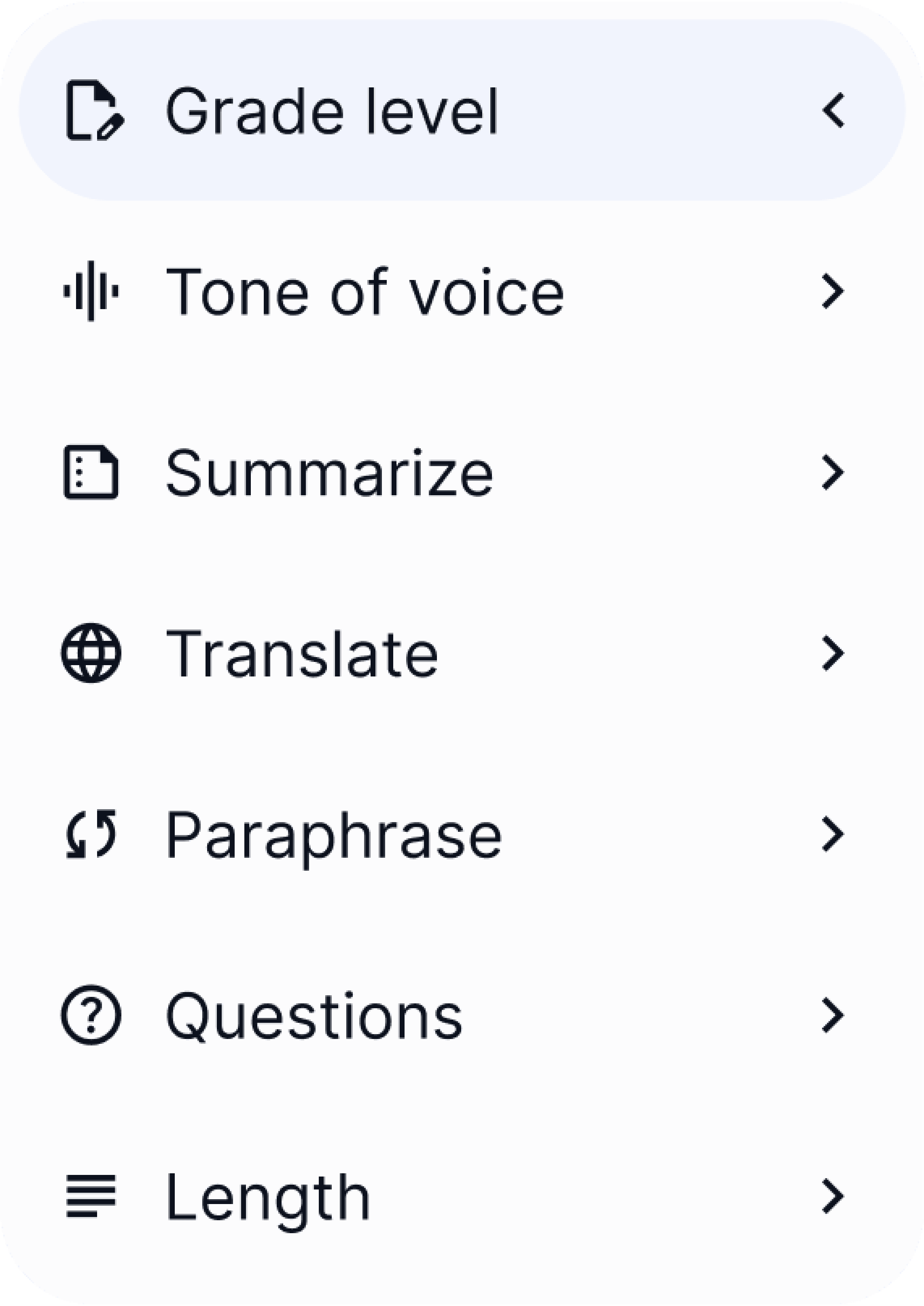
Use our one-of-a-kind editor to refine, differentiate, and perfect resources before exporting them for use in your classroom.
Key features
Plan, teach, and grade with EnlightenAl
Description text
Rubric management
Find your preferred rubric in our rubrics library, or import, generate, and manually create the rubric you need in a couple clicks.
Google Classroom integration
Sync Google Classroom to import your rosters, assignments, and student Google Doc submissions. You can post feedback directly to Google.
Adaptive Al grading
As you edit AI suggested scores and feedback, your AI assistant learns and improves, getting more accurate and aligned with each click.
Immediate Al feedback
Set up your AI assistant to deliver feedback immediately when student submit, enabling them to revise their work on the spot.
Feedback reports
Send feedback to students using your preferred method, ranging from PDF handouts to posting on student work.
Student and class insights
View detailed student-level and class-level insights and trends, enabling you to target learning needs effectively.
Data-driven teaching materials
AI generate first-draft resources designed specifically to target your students’ learning needs.
Al teaching tools
Generate teaching materials in our purpose-built AI editor for education, which lets you build and refine AI outputs with AI superpowers.
Al-assisted differentiation
Use our one-of-a-kind editor to refine, differentiate, and perfect resources before exporting them for use in your classroom.
Data privacy and security
Safe, secure, and certified
Data privacy and security
Safe, secure, and certified
Data privacy and security
Safe, secure, and certified



Proven results
Maximize impact, minimize stress
0+
0+
hours
Estimated time saved by
teachers per year
0+
0+
Used in top-performing
schools worldwide
0%
0%
Teachers say they save time
with EnlightenAI
0k+
0k+
Student submissions graded
with feedback
0%
0%
Our accuracy in our recent study
0%
0%
Teachers say they give better feedback with EnlightenAI
Proven results
Maximize impact, minimize stress
0+
0+
hours
Estimated time saved by teachers per year
0+
0+
Used in top-performing
schools worldwide
0%
0%
Teachers say they save time
with EnlightenAI
0k+
0k+
Student submissions graded with feedback
0%
0%
Our accuracy in our recent study
0%
0%
Teachers say they give better feedback with EnlightenAI
Proven results
Maximize impact, minimize stress
0+
0+
hours
Estimated time saved by teachers per year
0+
0+
Used in top-performing
schools worldwide
0%
0%
Teachers say they save time
with EnlightenAI
0k+
0k+
Student submissions graded with feedback
0%
0%
Our accuracy in our recent study
0%
0%
Teachers say they give better feedback
with EnlightenAI
Designed with purpose
Built for teachers, by teachers
EnlightenAI has been like handing an intelligent, diligent, and tireless teaching assistant a stack of papers and having them returned promptly and in alphabetical order, meticulously graded with commentary—no fatigue, frustration, or bias involved.
Sean Galvin
6th Grade Social Studies Marshall Public Schools
Grading, once my most dreaded task, became faster and far more efficient. With EnlightenAI handling the bulk of the grading, I was free to focus on what mattered most: meaningful instruction with my students and time with my family.
Melynda Brown
6th Grade Humanities Delta Schools
I no longer need to spend hours searching for resources or scheduling meetings – I can focus on what matters most: my students’ success.
Theresa McSweeney
6th Grade ELA Boise Public Schools
The time savings with EnlightenAI have been phenomenal. No more ‘feedback block’ or weekends lost to endless screen time.
Julie Tarasi
Special Education Teacher Park Hill School District
After using EnlightenAI for a few weeks, my students demonstrated a clear upward trajectory in their ability to integrate feedback and substantiate their claims. EnlightenAI’s regular, targeted feedback became a key motivator for their improvement.
Brian Tash
4th Grade Teacher Conejo Valley Unified
With EnlightenAI, I was able to grade assignments in about half the time, freeing up valuable time to focus on other teaching priorities.
Mary Adewusi
3rd Grade Teacher Blackstone Valley Prep
After using EnlightenAI, across all skill levels, students made meaningful revisions, showing noticeable improvements in grammar, structure, and analysis. Seeing them take ownership of their work and make real progress so quickly was incredibly rewarding.
Jessica Martz
10th Grade ELA Juniata Valley Schools
I love how it made me more consistent with the language I use for feedback. The consistency of language and feedback vocabulary has helped my students and myself grow with their assignments.
Ally Wigmore
Middle School Science Vox Collegiate
I appreciate the numerous advantages provided by AI tools in creating assignments. The immediate feedback they offer to my students is invaluable, fostering a collaborative atmosphere where we can identify improvements together.
Steven Marles
Middle School ELA Emergence Academy
I cannot believe just how quickly I can provide aligned, personalized feedback to students. It’s truly like tears-in- the-eyes game changing!
Megan Marcum
Digital Learning Coach Bowling Green
I love how the feedback is targeted to what I am looking for. I thought that it would originally be generic and generalized, but it really does get specific, especially when I edit the feedback.
Nathan De Groot
Technology Specialist Central Valley Christian
EnlightenAI has completely transformed the way my students engage with the writing process. The immediate, personalized feedback helps them identify areas for improvement right away, allowing them to make meaningful revisions in real time.
Darragh Voy
HS English Teacher & Coach Lyons Township High
What has surprised me most about using EnlightenAI to give immediate feedback is how motivated students become in trying to improve their work. Students are so engaged in trying to improve their grade!
Mike Driver
Teacher of Psychology Ponteland High School
EnlightenAI has reshaped my relationship with assessing my students’ writing. My time and energy levels no longer dictate how much writing practice my students get. Instead, they get personalized feedback and data-driven reteaching based on areas that need improvement.
Aaron Makelky
Social Studies Teacher Kelly Walsh High School
Whole class trends help provide valuable insights to my teachers and I. The feedback is immediate and we get to jump into planning in our meetings right away.
Bryan Pawling
Science Department Chair KIPP New Jersey
I'm continually impressed by how well the AI picks up my feedback style both generally as well as in relation to a particular assignment and specific requirements.
Kate Cordes
English Teacher Skyview High School
Designed with purpose
Built for teachers, by teachers
EnlightenAI has been like handing an intelligent, diligent, and tireless teaching assistant a stack of papers and having them returned promptly and in alphabetical order, meticulously graded with commentary—no fatigue, frustration, or bias involved.
Sean Galvin
6th Grade Social Studies Marshall Public Schools
Grading, once my most dreaded task, became faster and far more efficient. With EnlightenAI handling the bulk of the grading, I was free to focus on what mattered most: meaningful instruction with my students and time with my family.
Melynda Brown
6th Grade Humanities Delta Schools
I no longer need to spend hours searching for resources or scheduling meetings – I can focus on what matters most: my students’ success.
Theresa McSweeney
6th Grade ELA Boise Public Schools
The time savings with EnlightenAI have been phenomenal. No more ‘feedback block’ or weekends lost to endless screen time.
Julie Tarasi
Special Education Teacher Park Hill School District
After using EnlightenAI for a few weeks, my students demonstrated a clear upward trajectory in their ability to integrate feedback and substantiate their claims. EnlightenAI’s regular, targeted feedback became a key motivator for their improvement.
Brian Tash
4th Grade Teacher Conejo Valley Unified
With EnlightenAI, I was able to grade assignments in about half the time, freeing up valuable time to focus on other teaching priorities.
Mary Adewusi
3rd Grade Teacher Blackstone Valley Prep
After using EnlightenAI, across all skill levels, students made meaningful revisions, showing noticeable improvements in grammar, structure, and analysis. Seeing them take ownership of their work and make real progress so quickly was incredibly rewarding.
Jessica Martz
10th Grade ELA Juniata Valley Schools
I love how it made me more consistent with the language I use for feedback. The consistency of language and feedback vocabulary has helped my students and myself grow with their assignments.
Ally Wigmore
Middle School Science Vox Collegiate
I appreciate the numerous advantages provided by AI tools in creating assignments. The immediate feedback they offer to my students is invaluable, fostering a collaborative atmosphere where we can identify improvements together.
Steven Marles
Middle School ELA Emergence Academy
I cannot believe just how quickly I can provide aligned, personalized feedback to students. It’s truly like tears-in- the-eyes game changing!
Megan Marcum
Digital Learning Coach Bowling Green
I love how the feedback is targeted to what I am looking for. I thought that it would originally be generic and generalized, but it really does get specific, especially when I edit the feedback.
Nathan De Groot
Technology Specialist Central Valley Christian
EnlightenAI has completely transformed the way my students engage with the writing process. The immediate, personalized feedback helps them identify areas for improvement right away, allowing them to make meaningful revisions in real time.
Darragh Voy
HS English Teacher & Coach Lyons Township High
What has surprised me most about using EnlightenAI to give immediate feedback is how motivated students become in trying to improve their work. Students are so engaged in trying to improve their grade!
Mike Driver
Teacher of Psychology Ponteland High School
EnlightenAI has reshaped my relationship with assessing my students’ writing. My time and energy levels no longer dictate how much writing practice my students get. Instead, they get personalized feedback and data-driven reteaching based on areas that need improvement.
Aaron Makelky
Social Studies Teacher Kelly Walsh High School
Whole class trends help provide valuable insights to my teachers and I. The feedback is immediate and we get to jump into planning in our meetings right away.
Bryan Pawling
Science Department Chair KIPP New Jersey
I'm continually impressed by how well the AI picks up my feedback style both generally as well as in relation to a particular assignment and specific requirements.
Kate Cordes
English Teacher Skyview High School
Designed with purpose
Built for teachers, by teachers
EnlightenAI has been like handing an intelligent, diligent, and tireless teaching assistant a stack of papers and having them returned promptly and in alphabetical order, meticulously graded with commentary—no fatigue, frustration, or bias involved.
Sean Galvin
6th Grade Social Studies Marshall Public Schools
Grading, once my most dreaded task, became faster and far more efficient. With EnlightenAI handling the bulk of the grading, I was free to focus on what mattered most: meaningful instruction with my students and time with my family.
Melynda Brown
6th Grade Humanities Delta Schools
I no longer need to spend hours searching for resources or scheduling meetings – I can focus on what matters most: my students’ success.
Theresa McSweeney
6th Grade ELA Boise Public Schools
The time savings with EnlightenAI have been phenomenal. No more ‘feedback block’ or weekends lost to endless screen time.
Julie Tarasi
Special Education Teacher Park Hill School District
After using EnlightenAI for a few weeks, my students demonstrated a clear upward trajectory in their ability to integrate feedback and substantiate their claims. EnlightenAI’s regular, targeted feedback became a key motivator for their improvement.
Brian Tash
4th Grade Teacher Conejo Valley Unified
With EnlightenAI, I was able to grade assignments in about half the time, freeing up valuable time to focus on other teaching priorities.
Mary Adewusi
3rd Grade Teacher Blackstone Valley Prep
After using EnlightenAI, across all skill levels, students made meaningful revisions, showing noticeable improvements in grammar, structure, and analysis. Seeing them take ownership of their work and make real progress so quickly was incredibly rewarding.
Jessica Martz
10th Grade ELA Juniata Valley Schools
I love how it made me more consistent with the language I use for feedback. The consistency of language and feedback vocabulary has helped my students and myself grow with their assignments.
Ally Wigmore
Middle School Science Vox Collegiate
I appreciate the numerous advantages provided by AI tools in creating assignments. The immediate feedback they offer to my students is invaluable, fostering a collaborative atmosphere where we can identify improvements together.
Steven Marles
Middle School ELA Emergence Academy
I cannot believe just how quickly I can provide aligned, personalized feedback to students. It’s truly like tears-in- the-eyes game changing!
Megan Marcum
Digital Learning Coach Bowling Green
I love how the feedback is targeted to what I am looking for. I thought that it would originally be generic and generalized, but it really does get specific, especially when I edit the feedback.
Nathan De Groot
Technology Specialist Central Valley Christian
EnlightenAI has completely transformed the way my students engage with the writing process. The immediate, personalized feedback helps them identify areas for improvement right away, allowing them to make meaningful revisions in real time.
Darragh Voy
HS English Teacher & Coach Lyons Township High
What has surprised me most about using EnlightenAI to give immediate feedback is how motivated students become in trying to improve their work. Students are so engaged in trying to improve their grade!
Mike Driver
Teacher of Psychology Ponteland High School
EnlightenAI has reshaped my relationship with assessing my students’ writing. My time and energy levels no longer dictate how much writing practice my students get. Instead, they get personalized feedback and data-driven reteaching based on areas that need improvement.
Aaron Makelky
Social Studies Teacher Kelly Walsh High School
Whole class trends help provide valuable insights to my teachers and I. The feedback is immediate and we get to jump into planning in our meetings right away.
Bryan Pawling
Science Department Chair KIPP New Jersey
I'm continually impressed by how well the AI picks up my feedback style both generally as well as in relation to a particular assignment and specific requirements.
Kate Cordes
English Teacher Skyview High School
Frequently Asked Questions
Find answers to all of your questions
Frequently Asked Questions
Find answers to all of your questions
Frequently Asked Questions
Find answers to all of your questions
What is the difference between EnlightenAl and ChatGPT?
What is the difference between EnlightenAl and ChatGPT?
What is the difference between EnlightenAl and ChatGPT?
How does EnlightenAl ensure data privacy and security?
How does EnlightenAl ensure data privacy and security?
How does EnlightenAl ensure data privacy and security?
If I sign up for free, can I still use EnlightenAI next year if it becomes paid?
If I sign up for free, can I still use EnlightenAI next year if it becomes paid?
If I sign up for free, can I still use EnlightenAI next year if it becomes paid?
How long does it take to 'train' the Al?
How long does it take to 'train' the Al?
How long does it take to 'train' the Al?
Can the system detect student use of Al?
Can the system detect student use of Al?
Can the system detect student use of Al?
How accurate is the Al grading and feedback?
How accurate is the Al grading and feedback?
How accurate is the Al grading and feedback?
What subjects, grade levels, and curricula does EnlightenAl work for?
What subjects, grade levels, and curricula does EnlightenAl work for?
What subjects, grade levels, and curricula does EnlightenAl work for?
Does EnlightenAl work with hand-written student work?
Does EnlightenAl work with hand-written student work?
Does EnlightenAl work with hand-written student work?
How can I access the Canvas integration?
How can I access the Canvas integration?
How can I access the Canvas integration?
Where can I learn more about how to use EnlightenAl's tools?
Where can I learn more about how to use EnlightenAl's tools?
Where can I learn more about how to use EnlightenAl's tools?
Are there supports or resources available to share this within my organization?
Are there supports or resources available to share this within my organization?
Are there supports or resources available to share this within my organization?
It’s free to try – click below to get started!
We offer a generous free plan for teachers, and are accepting district partners for the 25-26 school year.
It’s free to try – click below to get started!
We offer a generous free plan for teachers, and are accepting district partners for the 25-26 school year.
It’s free to try – click below to get started!
We offer a generous free plan for teachers, and are accepting district partners for the 25-26 school year.
Make feedback your superpower!
Make feedback your superpower!
Key features
Plan, teach, and grade with EnlightenAI
Rubric management
Find your preferred rubric in our rubrics library, or import, generate, and manually create the rubric you need in a couple clicks.
Google Classroom integration
Sync Google Classroom to import your rosters, assignments, and student Google Doc submissions. You can post feedback directly to Google.
Adaptive Al grading
As you edit AI suggested scores and feedback, your AI assistant learns and improves, getting more accurate and aligned with each click.
Immediate Al feedback
Set up your AI assistant to deliver feedback immediately when student submit, enabling them to revise their work on the spot.
Feedback reports
Send feedback to students using your preferred method, ranging from PDF handouts to posting on student work.
Student and class insights
View detailed student-level and class-level insights and trends, enabling you to target learning needs effectively.
Data-driven teaching materials
AI generate first-draft resources designed specifically to target your students’ learning needs.
Al teaching tools
Generate teaching materials in our purpose-built AI editor for education, which lets you build and refine AI outputs with AI superpowers.
Al-assisted differentiation
Use our one-of-a-kind editor to refine, differentiate, and perfect resources before exporting them for use in your classroom.
Key features
Plan, teach, and grade with EnlightenAI
Rubric management
Find your preferred rubric in our rubrics library, or import, generate, and manually create the rubric you need in a couple clicks.
Google Classroom integration
Sync Google Classroom to import your rosters, assignments, and student Google Doc submissions. You can post feedback directly to Google.
Adaptive Al grading
As you edit AI suggested scores and feedback, your AI assistant learns and improves, getting more accurate and aligned with each click.
Immediate Al feedback
Set up your AI assistant to deliver feedback immediately when student submit, enabling them to revise their work on the spot.
Feedback reports
Send feedback to students using your preferred method, ranging from PDF handouts to posting on student work.
Student and class insights
View detailed student-level and class-level insights and trends, enabling you to target learning needs effectively.
Data-driven teaching materials
AI generate first-draft resources designed specifically to target your students’ learning needs.
Al teaching tools
Generate teaching materials in our purpose-built AI editor for education, which lets you build and refine AI outputs with AI superpowers.
Al-assisted differentiation
Use our one-of-a-kind editor to refine, differentiate, and perfect resources before exporting them for use in your classroom.